top of page

Owner's Guide — English (US)

Original source

Resource text

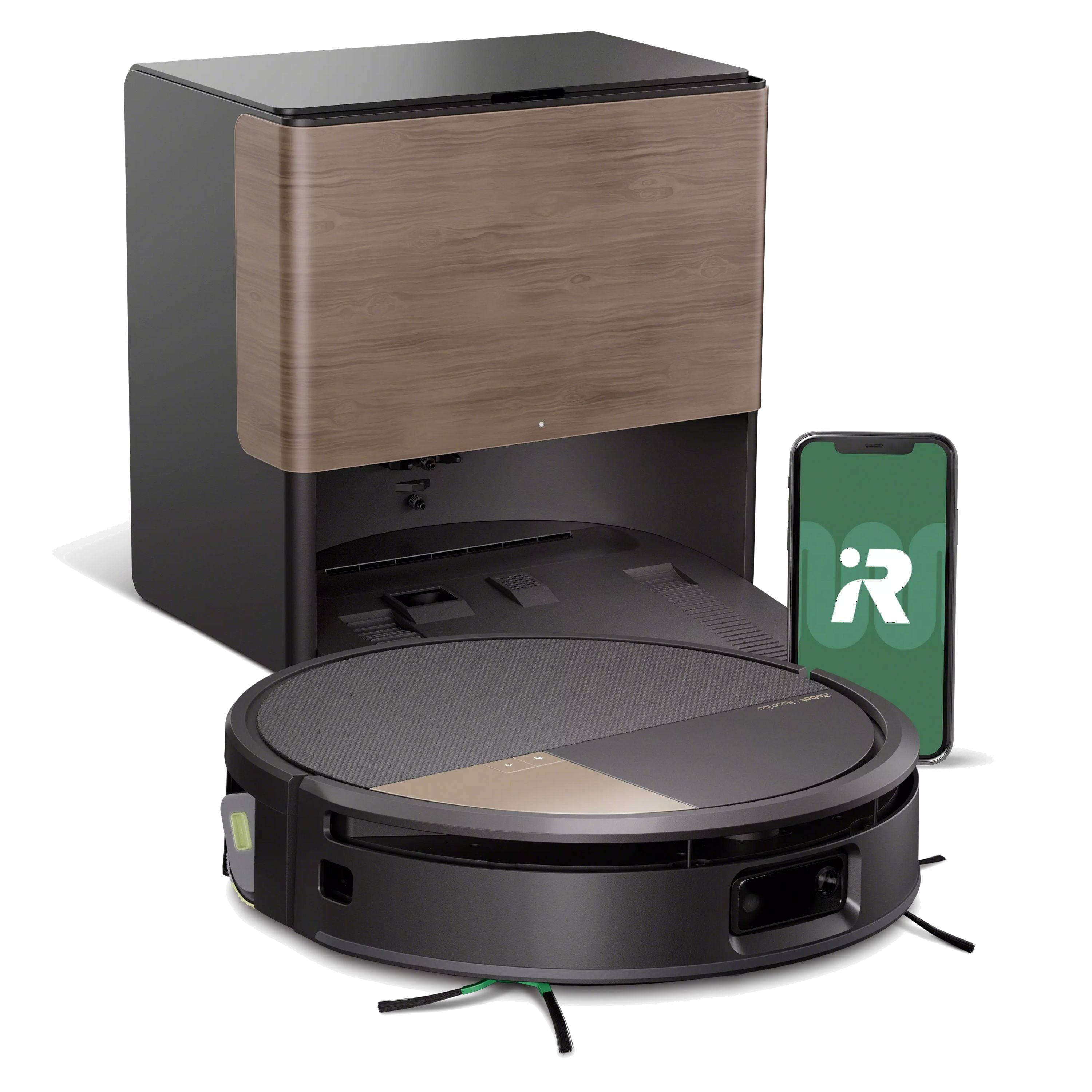
Roomba ® 770-779 Max Combo Robot + AutoWash™ Dock Owner's Guide

Getting Started 1 Download the Roomba ® Home App Scan the QR code with the camera on your mobile device or find the Roomba ®  Home App in your App store. The Roomba ®  Home App and a Wi-Fi ®  connection are required to complete set up. The Roomba ®  Home App will guide you through steps to set up your robot. Once your robot is set up, you can use the app to: •Control when, where, and how you clean •Create automatic cleaning schedules •Set custom cleaning preferences •Unlock digital features •Access to tips, tricks, and answers to commonly asked ques- tions NOTE: A 2.4 GHz Wi-Fi network is required. Setup is not compatible with 5 GHz Wi-Fi. IMPORTANT: Read safety information guide first before using your robot. 2 Roomba ® 770-779 Max Combo Robot + AutoWash™ Dock

2 Remove Protective Packaging Remove protective film from IR Window and foam inserts from behind the bumper. Remove packing tape from dock. For more information, visit global.irobot.com3

3 Install both Edge-Sweeping Brushes Align the Edge-Sweeping Brush marked with an A to the hard- ware marked with an A. Press down until you hear a click. Align the Edge-Sweeping Brush marked with a B to the hard- ware marked with a B. Press down until you hear a click. 4 Fill the Clean Water Tank MAX Remove Clean Water Tank from dock. Fill the Clean Water Tank with water. IMPORTANT: Ensure the latch is properly closed before reinstalling, and that tanks are properly seated to prevent leaks. 4 Roomba ® 770-779 Max Combo Robot + AutoWash™ Dock

5 Fill the Solution Concentrate Tank with Stay- Clean™ Mopping Concentrate for Room- ba ® Combo Robots. If you do not have the StayClean™ mopping concentrate, you may opt to dose the clean water tank with part water, part approved compatible cleaning solution as shown: Solution Reservoir for StayClean™ Mopping Concentrate for Roomba Combo Robots ONLY. Clean Water Tank for all other Compatible Solutions IMPORTANT: StayClean™ Mopping Concentrate for Roomba ® Combo Robots is currently the ONLY compatible cleaning concentrate for the solution reservoir. Do NOT use other solutions in this reservoir. IMPORTANT: If opting to add a cleaning solution to the water in the clean water tank, A full list of compatible cleaning solutions can be found on http://answers.irobot.com/s/roomba-combo-cleanser or by visiting the App. Please do not use other cleaning solutions or bleach-based products. For more information, visit global.irobot.com5

6 Place Your Dock >1.5í/.46m >4í/1.22m >4í/1.22m Place your dock on hard, level surfaced flooring. NOTE: Do not place it in direct sunlight. Ensure the area around the dock is free of clutter to improve docking performance. WARNING: To prevent the risk of your robot falling down stairs, ensure that your dock is placed at least 4 feet (1.22 meters) away from stairs. 7 Plug in Your Dock Plug the Power Cord into the back of the dock, then into a wall outlet. Wrap the cord on the back so it won’t get in the way of the robot as it comes and goes. 6 Roomba ® 770-779 Max Combo Robot + AutoWash™ Dock

8 Wake Up Your Robot Place your robot in front of the dock, then slide it forward until the metal Charging Contacts are lined up. Its lights will indicate that it’s waking up. A sound will let you know it’s fully awake. NOTE: Your robot comes with a partial charge, but we recommend letting it charge for 6 hours prior to creating a map of your home as battery readings may be inaccurate for the first few days. For more information, visit global.irobot.com7

About your Roomba ® Max 770-779 Combo Robot Top View 1. Robot Top Plate 2. Dust Bin 3. Charging Contact(s) 4. Clean Water Refill Port 5. Dirty Water Bin 6. Dirty Water Bin Release Button 7. Dirty Water Extraction Nozzle 8. Home Button 9. Power Button 10. PowerSpin™ Roller Mop Assembly 11. PowerSpin™ Roller Mop Release Button 12. Dirty Water Extraction Pump 13. Filter Cartridge 14. Dust Bin Release Button 15. Filter Cover Release Button 16. Dust Bin Port 17. Top Cover Magnetic Holders 18. Wall Follow Sensor 19. ClearView™ Pro LiDAR 20. Dust Bin Cover 21. Bumper 22. PrecisionVision™ AI Camera Technology and Illumination LED 8 Roomba ® 770-779 Max Combo Robot + AutoWash™ Dock

Bottom View 1. Front Caster Wheel 2. Carpet Detection Sensor 3. Wheels 4. Roller Mop Scraper Release Button 5. Roller Mop Cover 6. Rear Caster Wheel 7 8 9 10 11 13 14 15 16 18 17 12 11 13 11 13 11 7. Roller Mop Edge Clip 8. Roller Mop Release Button 9. Roller Mop Scraper 10. PowerSpin™ Roller Mop with PerfectEdge ® 11.Cliff Sensors 12. Edge-Sweeping Side Brush 'A' 13. Edge-Sweeping Side Brush 'B' 14. Cleaning Head Cover Release Button 15. Cleaning Head Cover 16. Dual Multi-Surface Rubber Brushes 17. Roller Mop Actuator 18. Auto-Empty Exhaust Port For more information, visit global.irobot.com9

About your AutoWash™ Dock Front View 2 10 11 5 6 7 8 9 1 2 3 4 1. LED Indicator 2. Charging Contacts 3. Exhaust Vent 4. Intake Vent 5. IR Window 6. Clean Water Refill Port 7. Dock Alignment Guides 8. Dirty Water Extraction Nozzle 9. Wash Basin Front Open View 12 13 14 15 16 17 18 10. Hot Air Duct 11. Hot Air Duct Cover 12. Dock Lid 13. Cleaning Brush & Hair Cutting Accessory 14. Dust Bag 15. Clean Water Tank Latch 16. Clean Water Tank 17. Dirty Water Tank 18. Dirty Water Tank Latch 10 Roomba ® 770-779 Max Combo Robot + AutoWash™ Dock

Top View 1 2 3 4 5 6 8 7 9 11 10 12 13 1. Dust Bag Guide Rails 2. Dock Pre-FIlter 3. Dust Bag Storage 4. Bag Full LED Indicator 5. Dirty Water Tank LED Indicator 6. Clean Water Tank LED Indicator 7. Dirty Water Float 8. Dirty Water Tank 9. Water Entry Point 10. Solution Reservoir Cap 11. Clean Water Float 12. Clean Water Tubing 13. Clean Water Tank Rear View 1 2 3 4 5 6 1. Dock Lid 2. Wheel Track 3. Exhaust Vent 4. Removable Power Cord 5. Cord Attachment 6. Cord Wrap For more information, visit global.irobot.com11

Charging Icon Indicators POWER and HOME Buttons White: Fully charged and connected. Flashing White: Returning to dock to charge. Pulsing White: Charging / Low Battery. When robot battery falls below 20% and is charging or on its way to charge. Flashing Red: Error / Low Battery. When robot has an error or when it's off the dock and its battery falls below 20%. Charging your Robot Your robot will return to the dock whenever it needs to recharge during a cleaning routine. Once it is sufficiently charged, it will then resume cleaning where it left off. Standby Mode Your robot uses a small amount of power whenever it is on the dock. You can put it in a further-reduced power state when not in use by pressing for 10 seconds. To exit low power mode short press . NOTE: Cleaning cannot be started from the mobile app while in low-power mode. Storing your Robot For long-term storage, turn off your robot by removing it from the dock, then press and hold the  button and bumper to- gether for 10 seconds. Store in a cool, dry place. 12 Roomba ® 770-779 Max Combo Robot + AutoWash™ Dock

Dock Charging LED Indicator Solid White: Dock is powered on and operating LED Indicator Off: Dock is not powered. NOTE: Software updates may adjust the actual LED behavior on the robot and/or dock. Please visit global.irobot.com for the most up-to-date information. For more information, visit global.irobot.com13

Cleaning Button Controls POWER •Tap to Start / Pause / Resume Cleaning •Hold for 3 seconds to turn on •Hold for 10 seconds to turn off HOME •Tap to send the robot home •Press to pause cleaning •Press when paused to dock •Press to stop docking Cleaning Pattern Your robot will automatically explore and clean your home. It will start by cleaning the perimeter of the room and then clean the remaining floor space in neat rows. It will return to the dock at the end of a cleaning routine and whenever it needs to re- charge. Tips: •Remove excess clutter from floors before cleaning. •Use your robot frequently to maintain well- conditioned floors. After 90 minutes of inactivity off the dock, your robot will auto- matically end its cleaning. If you are unsure if it is finished or paused, visit the Roomba ® Home App to check on its status. NOTE: It is highly recommended to use the Roomba ® Home App for cleaning control. The mobile app can be used to clean specific rooms, set up cleaning routines, and create automations and schedules. 14 Roomba ® 770-779 Max Combo Robot + AutoWash™ Dock

Spot Clean You can Spot Clean from the Roomba ® Home App or your ro- bot. Place your robot near the designated area you need Spot Cleaned. Tap two times. Spot Clean will clean 1m x 1m square around the robot two times in perpendicular directions. After Spot Clean is complete, your robot will end its cleaning routine. Press to send it back to its dock. Auto-Emptying Your robot will automatically empty its Dust Bin at the end of each cleaning routine. NOTE: It is highly recommended to use the Roomba ® Home App for cleaning control. The mobile app can be used to clean specific rooms, set up cleaning routines, and create automations and schedules. Auto-Washing Your robot will automatically return to the AutoWash™ Dock to empty its dirty water and wash its roller mop periodically throughout and at the end of each cleaning routine. NOTE: Roomba ® robots are generally designed to be used on most floor types for vacuuming. We do not recommend using mopping functions on unsealed hardwood floors and certain laminate / vinyl planks due to potential water damage to the flooring and/or subfloor. For more info, please visit global.irobot.com. For more information, visit global.irobot.com15

AutoWash™ Dock Cleaning LED Indicators Your dock has 3 horizontal red LED lights that turn on if there are errors. 1 2 3 1. Bag Full LED Indicator Turns solid red when Dust Bag is full, missing or improperly installed 2. Dirty Water Tank LED Indicator Turns solid red when Dirty Water Tank is full, missing or improperly installed 3. Clean Water Tank LED Indicator Turns solid red when Clean Water Tank is empty, missing or improperly installed 16 Roomba ® 770-779 Max Combo Robot + AutoWash™ Dock

Roller Mop Washing and Roller Mop Drying Your robot will return to its AutoWash™ Dock for Roller Mop Washing as needed during cleaning routines and then again when cleaning is complete. Roller Mop Drying only takes place at the end of cleaning rou- tines. Once washing is complete, the AutoWash™ Dock will dry the roller mop by blowing hot air over it. Hot air will blow on the Roller Mop while the robot intermittently rotates the Roller Mop to make sure all sides of the Roller Mop are dried evenly. Visit the Roomba ® Home App to manually start Roller Mop Washing, start or stop Roller Mop Drying, or to change the Roller Mop wash settings. NOTE: The drying process can last for a few hours. You can choose from different drying times in the app. You may hear a low hum coming from the dock while the dryer is active. IMPORTANT: Do not interrupt the robot while Roller Mop washing is active. It is nor- mal to hear noises throughout this process as the Roller Mop rotates. IMPORTANT: The PowerSpin™ Roller Mop with PerfectEdge ® is not washing machine nor dishwasher safe. For more information, visit global.irobot.com17

Vacuuming & Mopping To start cleaning, place the robot on the dock and use the Roomba ® Home App or press to start. Initiate Vacuum Mode To vacuum, ensure robot is on the dock. Use the app to select rooms / spaces, select Vacuum Mode and start your cleaning routine. Initiate Mop or Vac & Mop Mode To Mop or Vac & Mop, ensure Clean Water Tank is full, Dirty Water Tank is empty, and the robot is on the dock or ground with the Mop Pad Plates and Mop Pads installed. Press to initiate a Vac & Mop routine or use the app to select rooms / spaces, select Vac & Mop, Vac then Mop or Mop only and start your routine. NOTE: Your robot uses Vacuum & Mop combo cleaning mode by default. To Vacuum only, Mop only, select rooms to clean, and customize your cleaning routine use the app. 18 Roomba ® 770-779 Max Combo Robot + AutoWash™ Dock

Starting a Cleaning Routine from the Dock If the Clean Water Tank and Dirty Water Tanks are ready, skip to step 5. If the Clean Water Tank or Dirty Water Tank LED Indicators are on: 1 Lift to remove the Clean Water Tank. 2 Lift the latch on the tank to open. For more information, visit global.irobot.com19

3 Empty the Dirty Water Tank. 4 MAX Fill the Clean Water Tank with water. 20 Roomba ® 770-779 Max Combo Robot + AutoWash™ Dock

5 Close and latch the water tank lids. 6 Place tanks back on the dock. IMPORTANT: Ensure the latch is properly closed before reinstalling, and that tanks are properly seated to prevent leaks. For more information, visit global.irobot.com 21

7 To start cleaning, place the robot back on the AutoWash™Dock and use the app or press . IMPORTANT: Your robot is able to both vacuum and mop at the same time when the Mop Pad Plate(s) and Mop Pad(s) are installed. Before starting a cleaning routine, prepare the room by rolling up / removing any carpets in the area you want to mop. 22 Roomba ® 770-779 Max Combo Robot + AutoWash™ Dock

Care and Maintenance for your Robot Maintain optimal performance and debris pick-up by regularly cleaning the parts in the chart below. If you notice your robot leaving debris behind, empty the bin, and clean the filter and brushes. View additional instructional videos in the Roomba ® Home App. PartCare FrequencyReplace- ment a. Water TankEmpty after each use Dust BinEmpty and wash as needed Multi-Surface BrushClean 1/weekEvery 6-12 months Charging ContactsClean every 2 weeks or as needed Edge-Sweeping BrushClean every 2 weeks or as neededEvery 3-6 months FilterClean 1/week (2/week with pet)Every 3-6 months Caster WheelClean every 2 weeks or as needed Rear Caster WheelClean every 2 weeks or as needed SensorsClean 1/month or as needed Brush CoverInspect every 6 monthsReplace if worn or damaged PowerSpin™ Roller Mop Wet Cleaning System Clean as neededEvery 6-12 months a. Replacement frequency may vary. Parts should be replaced if visible wear appears. If you think you need a replacement part, please contact iRobot ® Customer Care for more information. Cleaning the Edge-Sweeping Brush Pull Edge-Sweeping Brush to remove. Remove any hair or debris. Reinstall Edge-Sweeping Brush. IMPORTANT: It is recommended to replace the Edge-Sweeping Brush every 3–6 months to keep your robot cleaning at its best. For more information, visit global.irobot.com23

Cleaning the Multi-Surface Brushes 1 Pinch the brush frame release tab, lift the tab, and remove any obstructions.

2 Remove the Multi-Surface Brushes. 24 Roomba ® 770-779 Max Combo Robot + AutoWash™ Dock

3 Remove any hair or debris. 4 Remove end caps from the end of the brushes. For more information, visit global.irobot.com25

5 Remove any hair or debris that has collected beneath the caps. Replace end caps. 6 Reinstall the Multi-Surface Brushes and Brush Cover in the robot. IMPORTANT: It is recommended to replace Multi-Surface Brushes every 6-12 months for optimal cleaning performance. 26 Roomba ® 770-779 Max Combo Robot + AutoWash™ Dock

Cleaning the Front Caster Wheel 1 Lift up to remove the Caster Wheel from your robot. Use a cloth to remove hair and debris from beneath the Front Caster Wheel.

2 Use a flathead screwdriver to pry out the wheel, and remove from the caster. For more information, visit global.irobot.com27

3 To reinsert the Caster Wheel, firmly press down with your palm until you hear a click. IMPORTANT: A front wheel clogged with hair and debris could result in damage to your floor. If the wheel is not spinning freely after you have cleaned it, please contact Customer Care. Cleaning the Rear Caster Wheel Gently pull the black Caster Wheel from right to left so it hinges open from the metal bar. Slide the wheel off and use the clean- ing brush to remove hair and debris from the rear of the wheel. 28 Roomba ® 770-779 Max Combo Robot + AutoWash™ Dock

Cleaning the Charging Contacts and Sen- sors Remove the robot from the dock and wipe the Charging Con- tacts and sensors with a clean, dry cloth or lightly dampened melamine foam. CHARGING CONTACTSSENSORS IMPORTANT: Do not spray cleaning solution or water on the Sensors or Sensor openings. For more information, visit global.irobot.com29

Cleaning the Dirty Water Bin 1 Press DOWN on the release button to remove the dirty water bin. 2 Press IN on the same release button to open and lift the dirty water bin lid. 30 Roomba ® 770-779 Max Combo Robot + AutoWash™ Dock

3 Remove black rubber stopper from inside the dirty water bin to clean the inner tubing leading to the drip tray. 4 For more information, visit global.irobot.com31

5 Return the black rubber stopper. 6 Rinse and wipe away residue from the top surface of the dirty water bin. 32 Roomba ® 770-779 Max Combo Robot + AutoWash™ Dock

7 Wipe away residue from the undercarriage of the robot. This area must be clear of residue to ensure the dirty water bin slides back into the robot properly. 8 Reinsert the dirty water bin back into the robot. IMPORTANT IMPORTANT: The Dirty Water Bin is not dishwasher safe. It is im- portant to thoroughly clean the Dirty Water Bin to keep your robot cleaning at its best. For more information, visit global.irobot.com 33

Cleaning the PowerSpin™ Roller Mop with PerfectEdge™ 1 Slide the green release button over on the edge clip of the PowerSpin™ Roller Mop. This will release the edge clip from the PowerSpin™ Roller Mop Scraper. 2 Hold the edge clip and pull out the PowerSpin™ Roller Mop. 34 Roomba ® 770-779 Max Combo Robot + AutoWash™ Dock

3 Press release button on the PowerSpin™ Roller Mop Scraper As- sembly and slide the scraper out. 4 Clear all hair and debris free from behind and between the edge clip and roller mop scraper. For more information, visit global.irobot.com35

5 Gently peel back the rubber strip by lifting from the corner marked with an arrow, leaving the opposite end attached.  6 Rinse and wipe clean any residue on and from beneath the rubber strip. 36 Roomba ® 770-779 Max Combo Robot + AutoWash™ Dock

7 Reinsert the rubber strip starting from the same side you pulled to remove the strip marked with an arrow. 8 Press down the rubber strip starting from the opposite of the inserted side until it lays completely flat all the way across. For more information, visit global.irobot.com37

9 With the roller mop cover in the retracted position, clean the actuator so it's free of debris and build-up. IMPORTANT IMPORTANT: If the roller mop cover is closed, do not try to force it open. Please visit global. irobot.com for assistance. 10 Reinstall the PowerSpin™ Roller Mop Scraper. 38 Roomba ® 770-779 Max Combo Robot + AutoWash™ Dock

11 Reinstall PowerSpin™ Roller Mop. 12 PowerSpin™ Roller Mop Scraper is properly installed in place when you hear a ‘click’ . For more information, visit global.irobot.com39

Cleaning the Filter and Dust Bin 1 Remove Robot Top Cover by lifting up. 2 Press the Dust Bin Release Button and pull up to remove Dust Bin. 40 Roomba ® 770-779 Max Combo Robot + AutoWash™ Dock

3 Push release tab to lift open bin door. 4 Remove Filter Cartridge. For more information, visit global.irobot.com41

5 Remove Filter Screen. Remove debris by tapping Filter Cartridge against trash bin and/or clean with clean cloth. NOTE: Filter Screen can be washed but needs to be completely dry before reattachingto the filter NOTE: To achieve optimal performance with your robot and dock, clean and/ or replace your robot’s filter as needed. 42 Roomba ® 770-779 Max Combo Robot + AutoWash™ Dock

6 Empty Dust Bin over a trash bin and clean with cloth, or rinse using warm water. IMPORTANT: Do not wash the filter. Remove the filter before washing the bin. The bin is not dishwasher safe. 7 Replace the mesh back onto the Filter. Reinsert filter. For more information, visit global.irobot.com43

8 Close bin door. You should hear a click if filter is properly inser- ted. 9 Place Dust Bin back in the robot. 10 Return Robot Top Cover. 44 Roomba ® 770-779 Max Combo Robot + AutoWash™ Dock

Washing the Bin Release the bin, remove the filter, and open the bin door. Rinse the Dust Bin using warm water. Ensure the bin is completely dry. Reinsert filter and place bin back into the robot. IMPORTANT: Do not wash the filter. Remove the filter before washing the bin. The bin is not dishwasher safe. For more information, visit global.irobot.com 45

Care and Maintenance for your AutoWash™ Dock To keep your AutoWash™ dock operating at optimal perform- ance, perform the following care and maintenance tasks. PartCare FrequencyReplacement Frequency a. Charging ContactsOnce every month Clean Water TankRinse and refresh water as needed Dirt Disposal BagsBags should be replaced when full - prompted by the LED indicator on the Auto- Wash™ Dock and/or Room- ba ® Home App Dirty Water TankRinse and empty as needed Dock FilterEach month remove debris covering the dock filter IR WindowClean once a month SensorsClean once a month Wash Basin and Air Duct Clean every 2 weeks or as needed a. Replacement frequency may vary. Parts should be replaced if visible wear appears. If you think you need a replacement part, please contact iRobot ® Customer Care for more information. Cleaning the Charging Contacts and IR Window Unplug the dock. Inspect the components to make sure that they are clear of debris. Wipe with a clean dry cloth. IMPORTANT: Do not spray cleaning solution or water on the sensors or Charging Contacts. 46 Roomba ® 770-779 Max Combo Robot + AutoWash™ Dock

Washing the Water Tanks 1 Remove both water tanks. 2 Lift the latch on the water tanks to open. For more information, visit global.irobot.com47

3 Empty Dirty Water Tank. 4 Rinse both water tanks using warm water. Mild soap and a sponge may be used for stubborn debris. IMPORTANT: Water tanks are not dishwasher safe. 48 Roomba ® 770-779 Max Combo Robot + AutoWash™ Dock

5 MAX Refill the Clean Water Tank with water. Leave the Dirty Water Tank empty. 6 Reinsert both water tanks. IMPORTANT: Ensure the latch is properly closed before reinstalling. For more information, visit global.irobot.com 49

Replacing the Dirt Disposal Bag 1 Remove Cubby Door. 2 Remove the Dirt Disposal Bag by pulling the card from the dock. This will seal the bag so dust and debris cannot escape. 50 Roomba ® 770-779 Max Combo Robot + AutoWash™ Dock

3 Install a new Dirt Disposal Bag by sliding the card into the guide rails. 4 Return the Cubby Door. For more information, visit global.irobot.com51

Removing Debris from Dock Filter Remove Cubby Door. Inspect blower cover for any lint or debris build-up, and wipe with a clean dry cloth to remove debris. Return Cubby Door. Cleaning the PowerSpin™ Roller Mop Wash- ing System and Duct Vent 1 The duct vent cover is attached via a magnet. Lift the duct vent cover to carefully wipe out debris underneath and around the duct vent and mop washing basin with a clean dry cloth. Ensure there are no obstructions in the drainage port. Mild soap and a sponge may be used for stubborn debris. IMPORTANT: When wiping the area clear of debris, be careful not to push debris into the hole located towards the back where air comes out. 52 Roomba ® 770-779 Max Combo Robot + AutoWash™ Dock

2 Reinstall duct vent cover. For more information, visit global.irobot.com53

Troubleshooting Troubleshooting your Robot Your robot will alert you if something is wrong with a voice an- nouncement or audio alert. The Roomba ® Home App will also provide notifications with steps to troubleshoot any issues.  If you are unsure if the robot is finished or paused, consult the Roomba ® Home App to check on its status. Factory Reset To factory reset press  for 5 seconds, don't release, and then (within 5 seconds) press + for 5 seconds. Battery Safety and Shipping •Battery MUST be turned off before shipping. •To turn off battery, remove robot from the dock. Push in its bumper and hold it in that position while you press and hold the button for 10 seconds, or until the lights turn off. •Package the robot securely for shipping. WARNING: Lithium ion batteries and products that contain lithium ion batteries are subject to stringent transportation regulations. If you need to ship this product for service, travel or any other reason, you MUST follow the below shipping instructions. If you need further a assistance, please visit your Roomba ® Home App, contact iRobot ® Customer Care or visit global.iro- bot.com Troubleshooting your AutoWash™ Dock Your AutoWash™ Dock will tell you if something is wrong with a red LED indicator on the top of the Autowash™ Dock. Refer to your Roomba ® Home App for troubleshooting steps. If the Auto- Wash™ Dock is not performing as expected, check the Roomba ® Home App for errors. LED IndicatorStatusHow to fix Left - Bag Full LED Indicator Bag is full or missing Replace bag if it is full or miss- ing. Make sure that the bag is securely inserted. If problem per- sists, remove any debris from the port on the bottom of your robot and AutoWash™ Dock. Center - Dirty Water Tank LED Indicator Dirty Water Tank is full or missing Empty Dirty Water Tank. Right - Clean Water Tank LED Indicator Clean Water Tank is empty or missing Fill Clean Water Tank with clean water. This product has been equipped with a thermal protector de- signed to protect against damage due to overheating. If the 54 Roomba ® 770-779 Max Combo Robot + AutoWash™ Dock

protector operates, the motor will stop running. If this happens, unplug the unit, allow it to cool for 30 minutes, clear any ob- structions from the evacuation port and evacuation tube, then plug the unit back in. Need further assistance? We’re here to help. Download the Roomba ® Home App or visit global.irobot.com for product support or to contact your local support center. If you need further assistance in the US & Canada, call the US Customer Care team at (877) 855-8593 iRobot ® USA Customer Care Hours Monday to Friday, 9AM — 9PM Eastern Time Saturday and Sunday, 9AM — 6PM Eastern Time Safety Information Please see the safety guide that came with your robot, or visit global.irobot.com For more information, visit global.irobot.com55

©2026 iRobot Corporation. 8 Crosby Drive, Bedford, MA 01730 USA. All rights reserved. iRobot, Roomba, and PerfectEdge are registered trademarks of iRobot Corporation. AutoEmpty, AutoWash, StayClean, and PrecisionVision are trademarks of iRobot Corporation. Wi-Fi and the Wi-Fi logo are registered trademarks of Wi-Fi Alliance. Apple and App Store are trademarks of Apple Inc., registered in the U.S. and other countries. Google Play is a trademark of Google LLC. 4867805 vB WC# 4867805 vA

©️ Todos os direitos reservados RAR 

RAR Now Part of Smartrobotix Group logo

Casa          _cc781905-5cde-3194 -bb3b-136bad5cf58d_           _cc781905 -5cde-3194-bb3b-136bad5cf58d_         _cc781905-5cde-3194- bb3b-136bad5cf58d_    Comentários
Shop           _cc781905-5cde-3194 -bb3b-136bad5cf58d_           _cc781905 -5cde-3194-bb3b-136bad5cf58d_         _cc781905-5cde-3194- bb3b-136bad5cf58d_    Termos e Condições
Sobre          _cc781905-5cde-3194 -bb3b-136bad5cf58d_           _cc781905 -5cde-3194-bb3b-136bad5cf58d_         _cc781905-5cde-3194- bb3b-136bad5cf58d_    Assinaturas
Contate-Nos
Candidate-se a trabalhar para nós

Plans & Account
MyRAR

RAR One

RAR Pass

RAR All-In

​​

RAR For

Students

Businesses

Non-profits

Startups

Company

About

Environment

Newsroom

Contact

Responsibility

​

Brands

You

Market

Casa

Pludo

Payment methods accepted by RAR: Pay later services, digital wallets, international payment providers, global payment providers, RAR Pay, and more.
  • Youtube
  • TikTok
  • facebook
  • instagram
  • LinkedIn
  • X
  • Threads

©️ Todos os direitos reservados RAR 

©️ Todos os direitos reservados RAR 

Rent Anything

bottom of page